
Overview
If form submission notifications from your website are being sent to your spam or junk folder, it is usually caused by an unverified From Email address in your form settings.
When a form uses an external email address (like a developer or system address) as the sender, major email providers (Google, Outlook, Yahoo) flag the message as unverified or suspicious.
To ensure your notifications land safely in your inbox, your form’s From Email must use an email address matching your website's domain (e.g., info@yourdomain.com).
How to Fix Form Notification Emails
Updating your form settings to use a verified domain address takes less than two minutes. Follow these 5 steps:
- In your website's admin dashboard, go to Main Menu >> Forms
- Hover over the form you want to update >> select Settings >> then click on Notifications
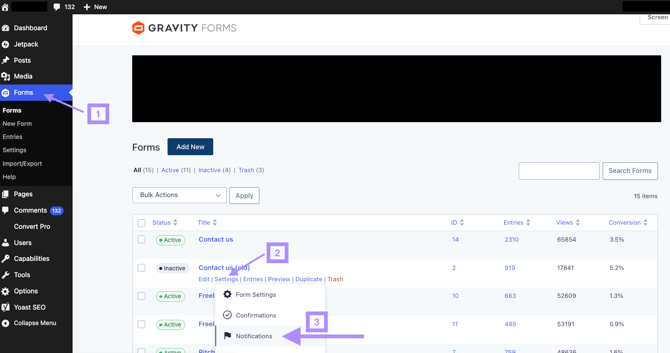
- Once on the Notifications settings page, hover over the active notification item (usually named Admin Notification) and click Edit
- Scroll down to the From Email field. Delete the existing address/tag and enter a valid email address that uses your website's domain (e.g.,
info@yourdomain.com) - Scroll to the bottom and click Save
Note: Repeat these same steps for any other active forms on your site.
Testing Your Changes
Once saved, we recommend filling out a test submission on your live website form. Check your primary inbox to confirm that the notification email arrives promptly and avoids the spam folder.
If you continue to experience delivery issues after updating your settings, please reach out to our support team at support@indiegraf.com for assistance.