
Where to configure?
Navigate to Main Menu > Appearance > Menus
Once in the Menus configuration page, start by selecting the desired menu from the drop down "Select a menu to edit". Remember to click on the "Select" button once you've made a selection.
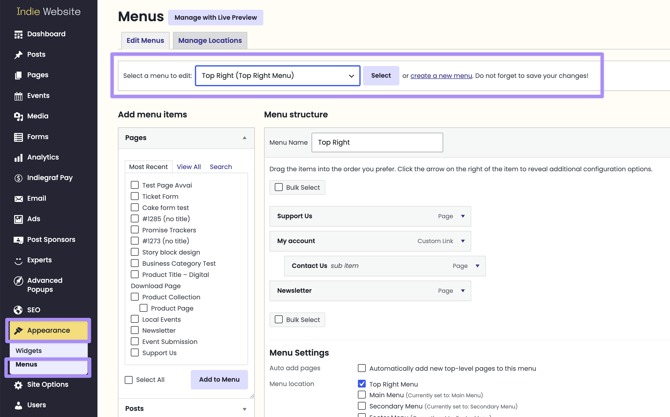
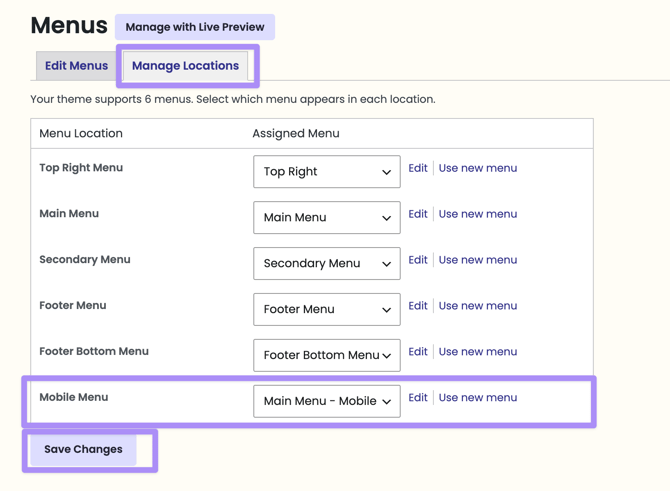
Menus Available (locations)
1. Top Right (Top Right Menu)

2. Main Menu (Main Menu)

3. Secondary Menu

4. Footer Menu
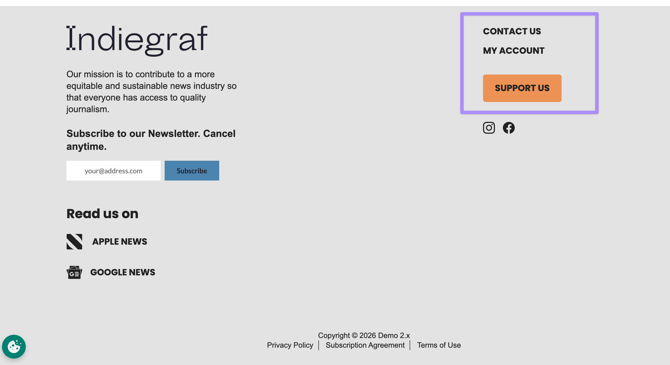
5. Footer bottom menu
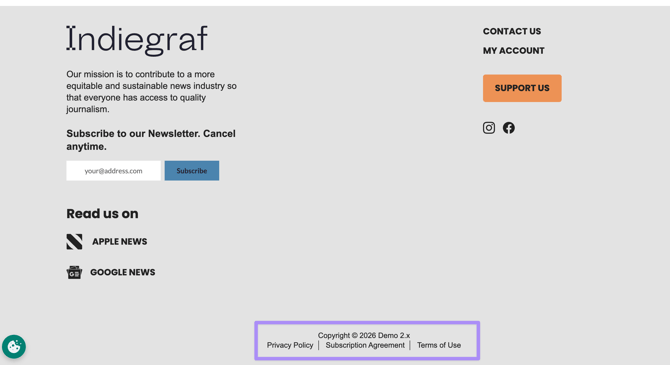
6. Main Menu - Mobile

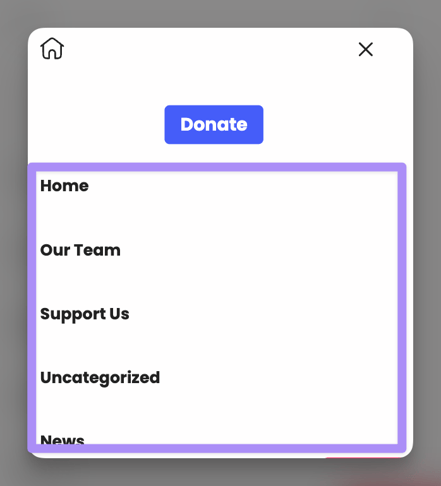
🔴 Note:
Main Menu (Mobile) is automatically set based on Main Menu, so no need to change it. All changes done on the Main Menu will be reflected on its mobile appearance.
🛠️ Troubleshooting mobile menus
If you're making a change to the mobile menu options and you're not seeing the changes come into effect, check the Manage Locations settings. Assign the Mobile Menu to the appropriate menu and save the changes.
Updating your current items on your Navigation Menu
You can do this on the section located on the right side of the page titled: Menu Structure
Adding new items to your Navigation Menu
You can do this on the section located on the left side of the page titled: Add menu items. Types of items you can add:
-
Pages
-
Posts
-
Custom Links
-
Categories