
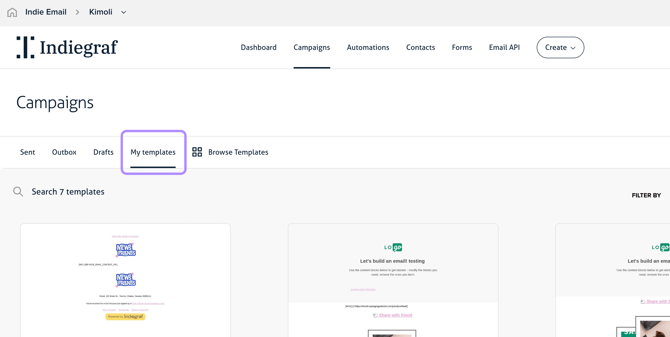
When preparing a new newsletter, it might feel fastest to jump into your Sent folder and hit "Duplicate." However, to keep your emails looking sharp and displaying correctly across all inbox providers, we strongly recommend always starting a new draft from a saved master template ("My Templates").
Here is a quick look at why this simple habit makes a huge difference in your email quality.
What’s the difference?
- Saved master templates (located under Campaigns > My Templates):
These store the clean, original blueprint of your layout. They contain pure, untouched code that is ready for new content. - Duplicating Sent Emails (from the Sent page):
When an email is sent, inbox providers process and alter its underlying code so it renders correctly for the recipient. Duplicating a sent email copies that "used" code rather than your clean original template.
Why we recommend starting from a Master Template
- It prevents hidden code glitches. Sending an email alters its code behind the scenes. Copying a sent email over and over compounds those code changes, which can eventually cause layout breakage, weird spacing, or broken fonts.
- It stops errors from multiplying. If a past email had a small, unnoticed formatting bug, duplicating it guarantees that bug gets passed along to your new draft.
- It ensures consistent rendering. Starting fresh from your template ensures your emails render beautifully across every email client (Gmail, Outlook, Apple Mail, etc.).
The Recommended Workflow
- Go to Campaigns > My Templates page.
- Find the corresponding master template and click create campaign
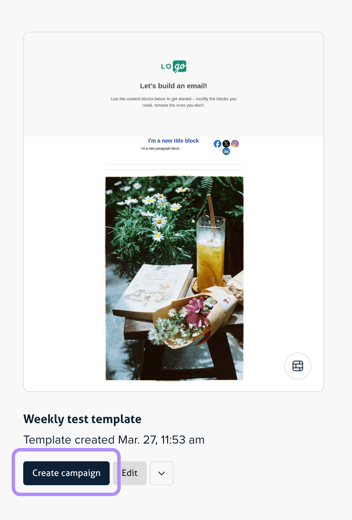
- Add and update with your new content, images, links, etc.
- Save
⚠️ Important: Always click Create Campaign to build your draft—this creates a fresh copy of your template. Clicking Edit will change your permanent master template instead!
The Rule of Thumb
As long as your master template looks great in the editor, it is completely safe to build from and will never carry over old delivery errors.