
Once you have exported your Stripe contacts, you can upload them to an email marketing platform where you can organize them via tags to create campaigns for segments of your audience.
In this article, we will demonstrate how to do this through Mailchimp, but the steps outlined here can be applied to other email service providers.
Before continuing, please be sure to read our article on how to export contacts from Stripe for email marketing.
Uploading contacts
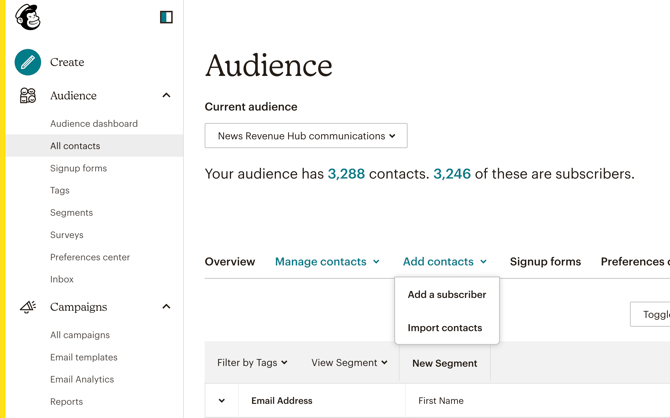
Log in to your Mailchimp account and navigate to the Audience dashboard. Select Manage Audience, which will open a pick list where you can select the option to import contacts.
Mailchimp can only import .csv files. Choose Upload a file and upload the data you previously exported from Stripe.
Organizing and Tagging your Contacts
Because you want to update contacts in your audience with a new category, be sure to select “Update any existing contacts” before completing the import process. Otherwise, Mailchimp will only import contacts that are not already in your list.
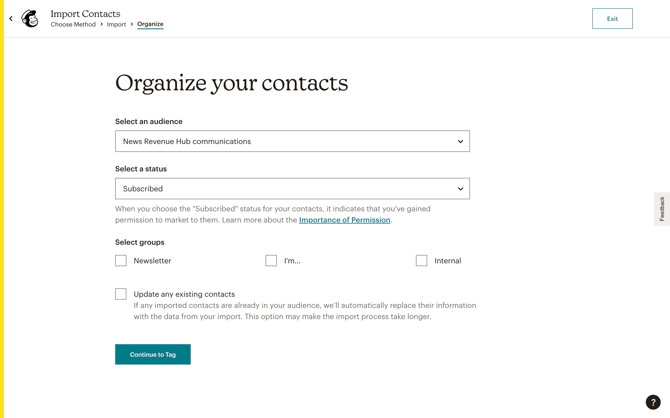
When prompted to tag your contacts, create a new tag that describes this segment, such as 2023-03-22 member import. If you're new to Mailchimp tags, click here to learn more.
Depending on how your Mailchimp is configured and what columns you imported from Stripe, there likely will be discrepancies between these two platforms' data that will need reconciling. For example, if your Stripe export has an email_address column, but Mailchimp labels this column “email”, you will need to match these two fields together so that Mailchimp can understand what information it is receiving.
When prompted to match fields, you should generally only need to match email address. Keep in mind that when you chose Update any existing contacts, you will overwrite anything that’s currently in those Mailchimp fields.
Complete the import process and return to your campaign.
When segmenting your contacts simply choose Tag → 2023-03-22 member import (or whatever you named your import) to filter out all the contacts from this import.
If you want to learn more about segmenting on Mailchimp, click here for more information.