
In your contributions dashboard, you might find payments with a canceled status.
This is a result of one of two things:
- A contributor filled out all of their information but abandoned the page when prompted to submit a credit card
- The contributor created a subscription and later canceled it using their contributor portal
You can use Stripe to quickly filter out abandoned cart data and then use that data to reconnect with these missed contributors via an abandoned cart series on Mailchimp.
If you use Salesforce, abandoned one-time donations may appear as “Closed Lost.” We’re working on labeling these more accurately.
Exporting all abandoned payment contacts from Stripe
To export these canceled contributions from Stripe:
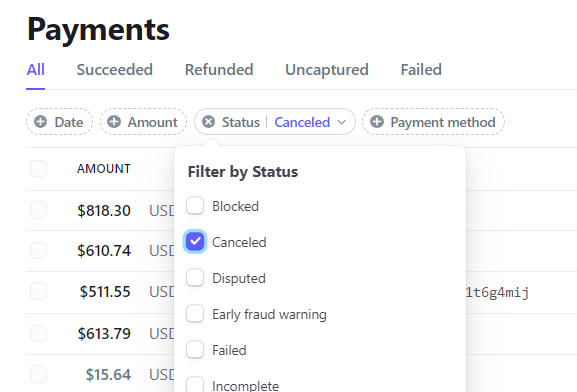
- Log into Stripe and select Payments to find all payments made to your newsroom, which include contact information
- Click on + Status and select Canceled. Feel free to apply any additional filters such as the date, and click Export
- In the Columns section, select the Customize option to choose what contributor information to pull from Stripe manually. If you don’t have a preference, we suggest you select Default. Then, submit by clicking Export again
- You will receive a CSV file, which you can choose to have sent via email or download directly
Exporting only canceled subscription contacts from Stripe
If you want to instead pull only canceled recurring contributions:
- Log into Stripe and select Subscriptions to find all payments made to your newsroom, which include contact information
- Click on + Status and select Canceled. Feel free to apply any additional filters such as the date, and click Export
- In the Columns section, select the Customize option to choose what contributor information to pull from Stripe manually. If you don’t have a preference, we suggest you select Default. Then, submit by clicking Export again
- You will receive a CSV file, which you can choose to have sent via email or download directly
Importing data to Mailchimp
Now that you have your data, you need to upload it to Mailchimp before you can create your abandoned cart series.
Check out these instructions to learn how to import and organize your Mailchimp import.
We suggest you tag your canceled contribution contacts something such as “Canceled contributions past year [date]” so you can easily identify this group when launching your abandoned cart series.
Creating an abandoned cart series
Your contacts are loaded into Mailchimp and you’re almost there!
The final step is to create your abandoned cart series so that you can re-engage and convert those missed contributors!
Mailchimp makes it easy to create an abandoned cart series. Check out their documentation here.
To avoid accidentally reaching out to someone who actually has given, we suggest that you exclude any individuals who have made a successful payment in the past year, as there may be cases of people dropping out from submitting their credit card information and actually completing their payment at a later time.